

Set up from the Meilisearch Cloud dashboard
Open your project in the Meilisearch Cloud dashboard, select the Search rules tab, and click New rule. The visual editor opens. For a walkthrough of the editor, see Create your first rule. Choose the index, hereproducts. In the Your rule panel, keep Anything selected, so the rule applies whatever users type.
Boost the products on sale
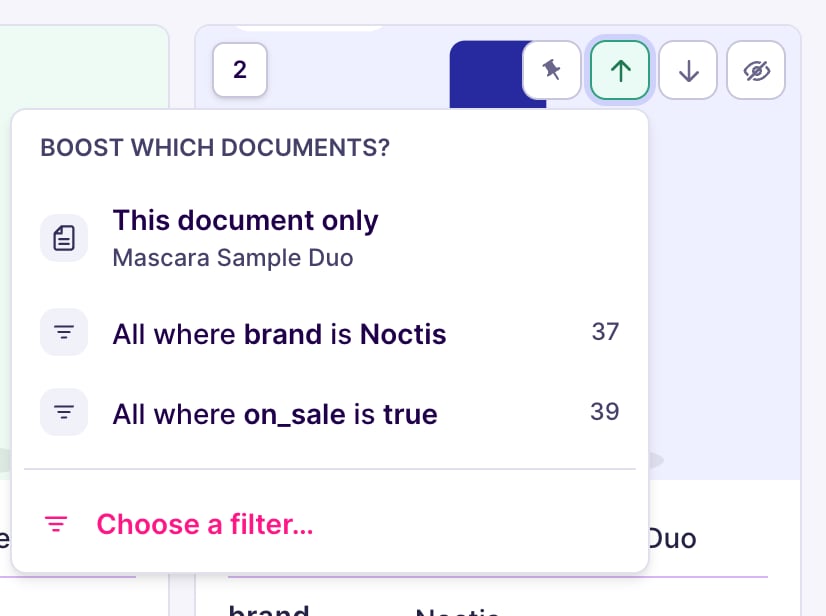
Hover any result card, then click its boost icon. The menu asks which documents to boost:- This document only: boosts the document on the card.
- All where…: boosts every document sharing a value with this card, such as its brand or its category. The menu shows how many documents each option selects.
- Choose a filter…: boosts the documents matching a filter you write.
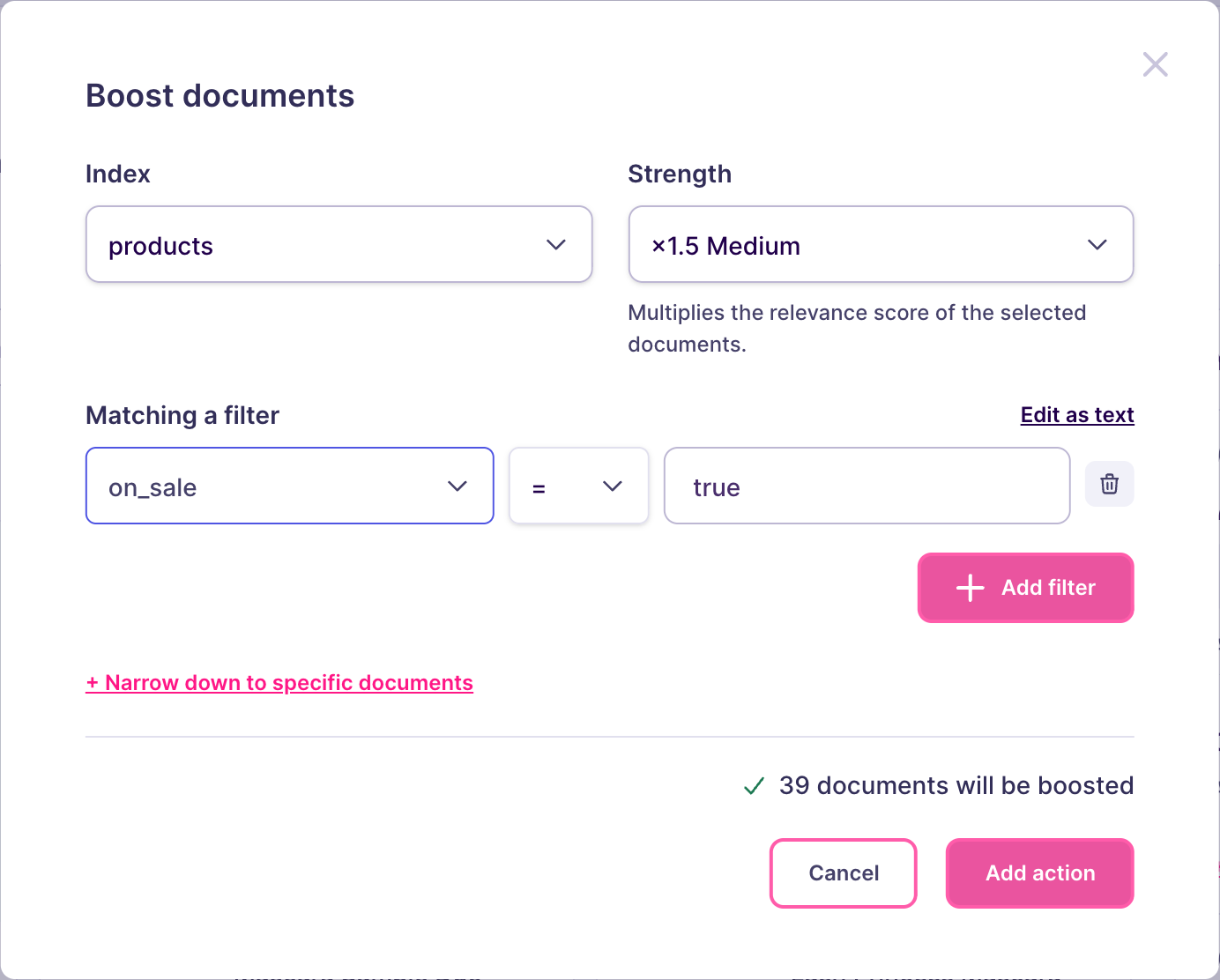
- Index: the index holding the products, here
products. - Strength: how high the selected products climb. Start with Medium, then run a few searches of your own and adjust: the right strength depends on your data and on the way your users search.
- Matching a filter: the condition selecting the products, here
on_sale = true. The attribute you filter on must be in thefilterableAttributessetting of the index, otherwise the action selects no document.
Limit the rule to the campaign
In the When it runs section of the panel, select Between dates, then enter the start and the end of your campaign. Times are in UTC, so convert your local window before entering it.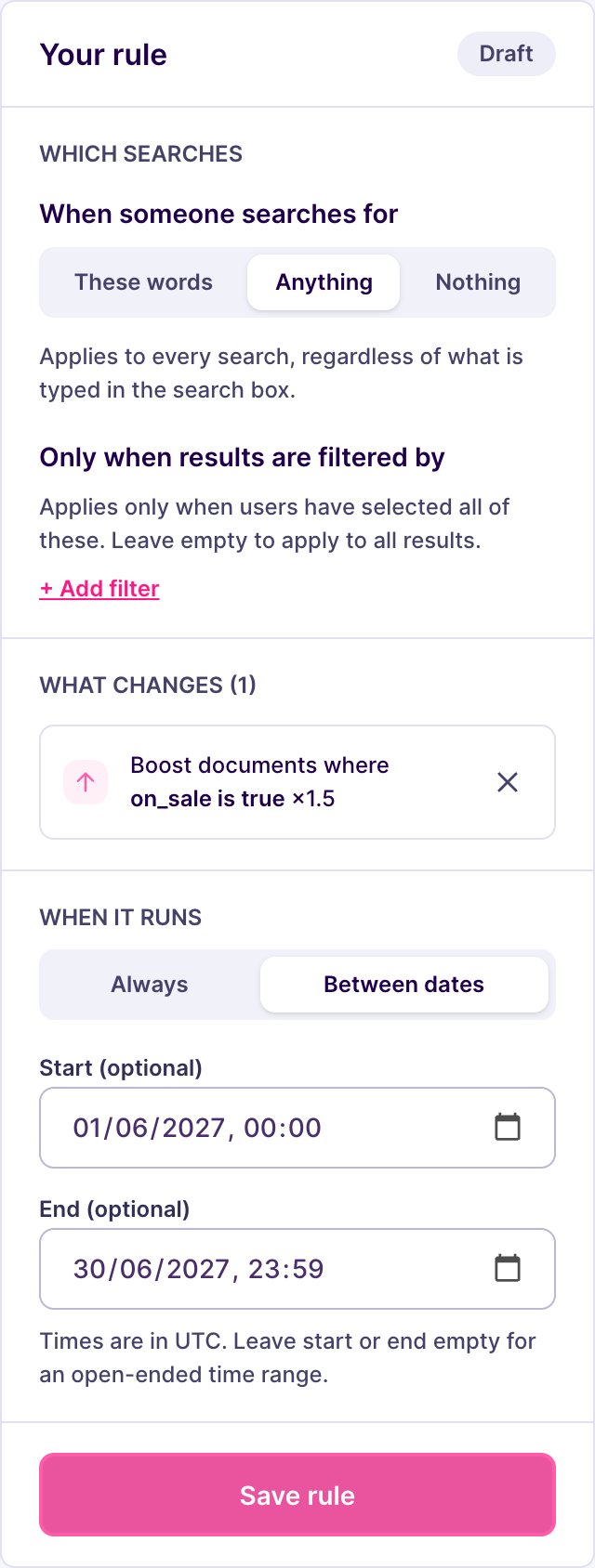
Save the rule
Click Save rule. In the Review and save dialog, name the rule, such assummer-sale, then click Save and activate. Meilisearch indexes the rule, which can take a few seconds to a few minutes. Once it is live, searches keep their usual results during the campaign, with the products on sale higher in the list.
Set up on a self-hosted instance
weightmultiplies the relevancy of the selected documents. Above1, the documents rank higher. A product that was tenth can move into the first results, but only if it matches the query.filterselects every document matching it. The attributes you use must be in thefilterableAttributessetting of the index, otherwise the action selects nothing.conditions.timeaccepts RFC 3339 timestamps in UTC. Convert your local campaign window before sending it.
taskUid, because creating a rule is an asynchronous operation:
succeeded status. To follow its progress, pass the taskUid to the task API.
From then on, searches return the same documents as before, with the products on sale higher in the list. At the end of the campaign, the rule stops on its own and the ranking goes back to normal, with nothing to clean up.
Next steps
Deboost documents
Keep documents available but lower in the results
Hide documents
Remove documents from the results without reindexing
Pause a rule
Stop a campaign before its end date
API reference
Endpoints, rule fields, and update behavior